How to extract text from an image or screenshot
 PDFBrio team
Updated Nov 17, 20262 min read
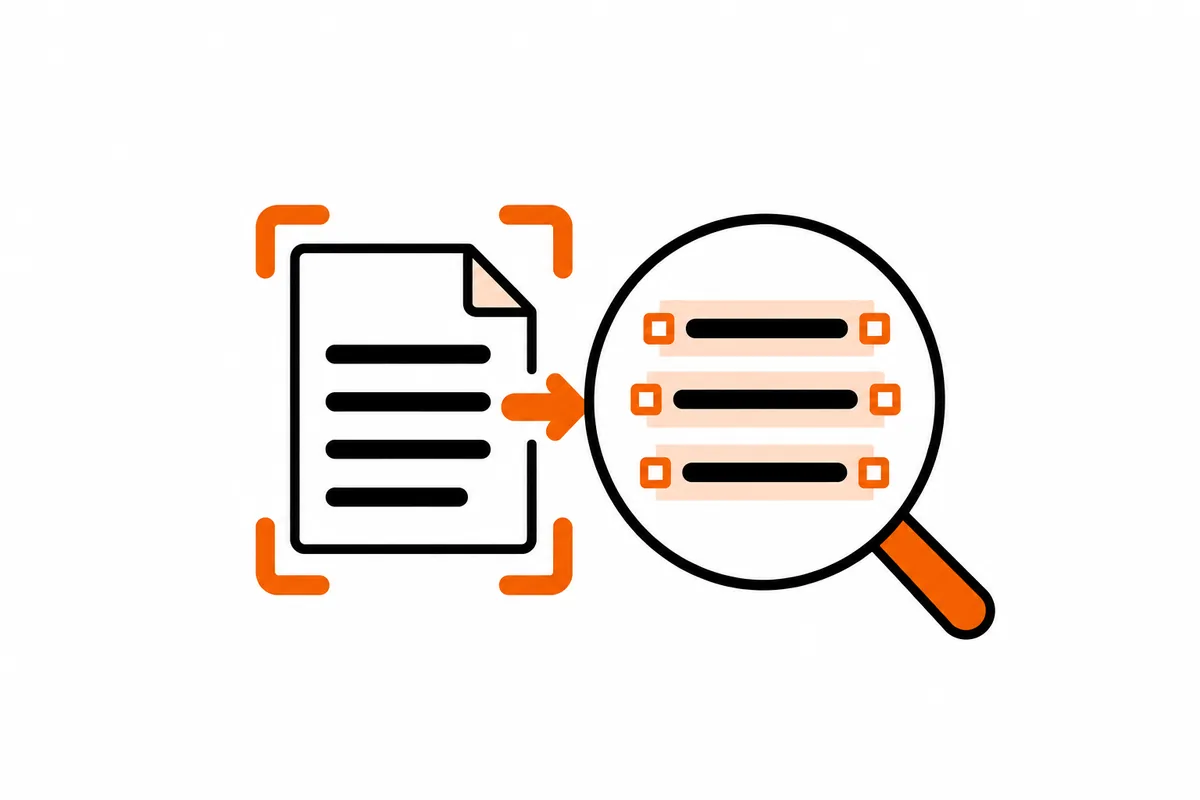
Image to text reads the words in photos, screenshots and scans and gives you plain text you can copy, edit or translate. Pick the language for the best accuracy.
In this article
A screenshot of an error message, a photo of a whiteboard, a picture of a page from a book, a scanned business card — the words are right there, but you cannot copy them. Text recognition gets them out in seconds.
How to extract text with PDFBrio
- Open Image to text and drop one or more images on the page — JPG, PNG, WebP, HEIC, AVIF, TIFF and more are accepted.
- Choose the Document language.
- Press Image to text.
- Copy or download the text.
Tips for better results
- Crop to the text. Logos, photos and busy backgrounds confuse recognition.
- Get it straight. Photograph pages straight on, without a strong angle.
- Light it evenly. Shadows across a page cause missed words. Enhance image can even out lighting and boost contrast before you extract.
- Bigger is better. Very small text in a low-resolution screenshot is hard to read for software, just like for people.
- Proofread numbers. "0" vs "O" and "1" vs "l" are the classic mix-ups.
Images or a PDF?
If your images are pages of a document, you may want a searchable PDF instead of loose text. Turn the images into a PDF with Image to PDF and run OCR PDF — you keep the original look and gain searchable text.
Built-in options on your devices
- iPhone, iPad and Mac: Live Text lets you touch and hold or select text directly in photos and screenshots.
- Android: Google Lens, built into the camera and Photos apps on many phones, can copy text from images.
- Windows: the Snipping Tool has a text action on recent versions of Windows 11.
These are great for a quick copy. For batches of images, scans or languages your phone does not handle well, a dedicated tool is quicker.
What to do with the text next
- Translate it — paste it into a translator, or translate whole documents with Translate PDF.
- Turn it into a clean document with Create PDF.
Frequently asked questions
Which languages are supported?
The language list shows the languages installed on our server — English and major European languages, plus others such as Russian, Ukrainian and Chinese depending on availability.
Can it read handwriting?
Printed text works best. Handwriting is recognised poorly.
Are my images kept?
No. They are deleted automatically after two hours, or immediately if you press "Delete files now".